The Body
<BODY>—</BODY> The <BODY> tag encloses all text, images, and other elements
that will be visible to the user on the web page.
The <BODY> tags contain the content of the HTML page and to identify this section it is surrounded by <BODY> and </BODY>. The text between the <BODY> tags is displayed inside the browser window. In our case, we have the text “This is where the body of the document...” You will notice that this is displayed inside the browser window.
Heading
<H1>—</H1> <H2>—</H2> The six levels of text headings ranging from the largest
<H3>—</H3><H4>—</H4> (<H1>) to the smallest (<H6>). Text headings appear in
<H5>—</H5> <H6>—</H6> bold face font.
ALIGN=Option The alignment of the heading.
(LEFT|RIGHT|CENTER)
Headings help define the format and structure of the document. They provide valuable tool in highlighting important information, headings and sub headings and the nature of the document as a whole.
As you can see, the heading tags come in pairs with the opening and closing tags. Any text surrounded by these tags will be displayed differently depending on the heading number. There are six levels of headings in HTML specified by <H1>, <H2>, <H3>, <H4>, <H5> and <H6> tags. The use of these in an HTML document are as follows:
<H1> First Level Heading </H1>
<H2> Second Level Heading </H2>
<H3> Third Level Heading </H3>
<H4> Fourth Level Heading </H4>
<H5> Fifth Level Heading </H5>
<H6> Sixth Level Heading </H6>
When you use these tags, no other tags can be used inside these tags and if they are used, they will be ignored. Heading or sub heading can be aligned to the left, right or centre using 'ALIGN' attribute. If it is necessary <H1 ALIGN = CENTER> Title of the heading </H1> can be used to align the title at the centre of the web page. These values can be assigned to ALIGN and their 'LEFT', 'RIGHT' and 'CENTER'.
Thursday, August 29, 2013

HTML Tags
Each tag consists of the name of the tag surrounded by the less-than '<' and greater-than ‘>’ signs. To tell the browser that something is a tag, you simply place “less than” and “greater than” symbols around them. The LESS THAN symbol is "<" and the GREATER THAN symbol is “>”. For example, P (for Paragraph) can be used as <P> in the web page. When you create web pages you can use <P> for paragraphs, sections and other phrases and to mark the end of such a section you can use </P> ending tag. The ending tag in this case is not compulsory; however there are some cases where ending the tag cannot be omitted. Such tags will be discussed later in this section.
Notes :
There is no need to use a couple of Tags for some instructional tags, and for security tags it is essential to use a couple of tags. For example, it is not essential to put </P> at the tag end of the paragraph.
HTML tags are not case sensitive. You can use CAPITAL Letters as well as simple letters. For example <TITLE>, <titLe>, <Title> and <title> have all the same result.
BODY, HEAD and TITLE for the HTML Document
Each HTML document begins with an <HTML> and ends with </HTML> tags and this implies that the document is made up of Hypertext Markup Language tags. HTML stands for Hypertext Markup Language which is the language of web page design. Example 5.2 shows how you can use tags such as <HTML>, <HEAD>, <TITLE>, <BODY>, <H1>, <H2>, <H3> and <H4> and Figure 5.4 shows the interface of the web page
Example 5.2
<HTML>
<HEAD>
<TITLE>Example 5.02</TITLE>
</HEAD>
<BODY>
<H1>This is where the body of the document...</H1>
<H2>This is Heading One</H2>
<H3>This is Heading Two</H3>
<H4>This is Heading Three</H4>
</BODY>

'Firefox' Web Window of Example 5.2
The Head
information about the document.
After Putting <HTML> to identify the main information use <HEAD> tag. To end this put </HEAD> and within these two tags use <TITLE> tag.
The Title
<TITLE>—</TITLE> The <TITLE> tag is used to specify the text that appears
in the Web browser’s title bar.
You will find an additional starting and ending pair of tags, the <TITLE> and </TITLE> inside the HEAD section, i.e. with <TITLE>University of Colombo </TITLE> between them and you are only allowed one TITLE element per page. So what is the purpose of this? Look at the display of the document and you will find that this text is shown on the top, at the Title bar of the browser. Thus, any text between the <TITLE> tags will be displayed here.
Use of HTML to design web sites
As a Markup Language, the purpose of HTML tags or codes are to provide a set of general rules that suggest how content should look when rendered
An HTML Document
Example 5.1 shows how HTML scripts are used for web pages and figure 5.3 shows first HTML script displayed on the internet browser, Firefox. It is displayed some of the important HTML tags for your attention.
Example 5.1
<HTML>
<TITLE>Example 5.01</TITLE>
<H1>What is HTML?</H1>
<P>The Hypertext Markup Language....</P>
<P>When HTML documents...</P>
</HTML>
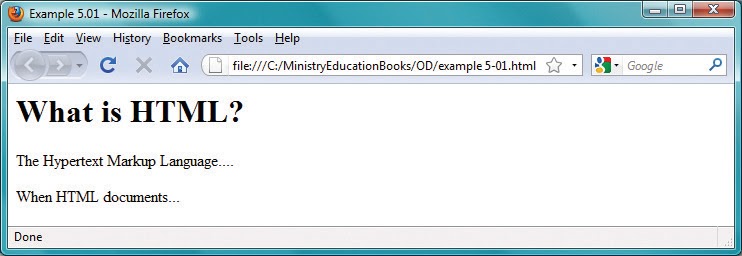
This shows how example 5.01 is displayed in the web browser
In this example, <HTML>, <TITLE></TITLE>, <H1></H1>, <P></P> and </HTML> tags are used and Figure 5.3 shows how it is displayed in your computer monitor using Firefox browser.
<HTML>
Starts the HTML document.
<TITLE>
Text inside <TITLE> tag displays the title of your web on the browser Title Bar.
<H1>
This is used to display the main title of your web page.
<P>
Used to highlight the paragraph of your web page.
3. WYSIWIG Editors
These editors can be used by even users new to this and who do not have wide knowledge of HTML codes to develop simple / basic web sites without any effort. These kind of editors have to be purchase from the market and some examples for them are as follows.
• ColdFusion
• Dream Weaver
Introduced by Adobe Inc. and
• Expression Web
• SharePoint Designer
• Visual Studio
• Visual Web Developer Express are some of editors introduced by Microsoft
Company.
2 Object Editors
Can use pre designed models the object editors designed with user friendly HTML tags and attributed and specially, different colours are use to display tags and attributes.
Another special feature of these object editors is ability to manipulate codes of different computer languages. Rather can edit codes as need is another special feature this has. For an example, if you use HTML this provide facilities for that or if you use Java language to edit it provides interface with these facilities. Examples for those editors are follows.
1' EditPlus - Created for windows operating system by Sangil Kim for
Es - Computing Institute.
2' Homesite - Homesite developed by Adobe is use for windows operating system. Specially use
for edit HTML codes.
3' Notepad++ - It has became a widely use editor which is created by Don Ho and can edit many
computer languages by this, mostly use to edit HTML codes. This is free and can use
with windows, Mac and Linux operating systems. More than 16 million people
have downloaded Notepad++ from www.SoureForge.net web site.
Interface of Notepad++

Use of Web Development Tools to Develop Web Sites
We have discussed that the web pages used in the WWW are develop according the rules of the Hypertext Markup Language (HTML). Web pages written in HTML are displayed on the screen by the web browsers. Multimedia files such as sounds, videos, images can be included in an HTML file. In order to establish links between items in other web pages and other web pages in web in the Internet,
‘Hyper-links’ can be established using HTML. ‘Hyper-Links’ can be used to link multimedia files too. In web site development three major types of tools can be used.
1. Text Editors
2. Object Editors
3. WYSIWIG - Editors
1. Text Editors
When developing web sites using a simple text editor you should have a good understanding about the HTML tags. A simple text editors such as ‘Notepad’ or ‘Notepad++’ can be used for this purpose and you need to type the HTML tags in appropriate way and you need good knowledge of HTML tags for this purpose. The basic knowledge needed for this activity will be provided in stages.
We can discuss about some simple text editors which can be used for this
purpose. We can obtain them free of charge.
1. Notepad - Free too distributed with windows operating system By
Microsoft Institute from their first windows operating system in 1985.
2. GEdit - Tool developed to use with Unicode. (See figure 5.1)
3. TextEdit - Free tool distributed with Macintosh Operating System.
4. TED Notepad - Text editors which developed from 2001 by Joraj Similovic can be
used with windows operating system.
Interface of GEdit text editor

Organization of Information for Website Development 2
As mentioned before, a web browser has the capability of handing web pages with ‘Rich-text’ and other features such as paragraphs, fonts and images. In addition to this there are web sites in which live radio and live TV can be played. Web browsers have the ability to access such web sites and provide such facilities. Further, web browsers can be used for Live Chat, Internet Phone, Internet Meeting, News Groups
and Teleconferencing. The web browsers with appropriate ‘Plug-in’s can be used to execute applications developed using different application software. Web browsers with Plug-in s have advanced capabilities. For example, if you want to watch a video of a format such as 'Quick Time Movie' (a special multimedia
video format), you can add the 'plug-in' ‘Quick Time Movie Player’ to your browser and watch it. Most of these Plug-ins can be downloaded freely from the Internet. ‘Firefox’, ‘Internet Explorer’ and ‘Safari’ are widely used web browsers and they can be downloaded freely from the Internet. The following are the important features of web browsers.
Handling Media Using Plug-ins
‘Media Handler’ allows the browser to perform the operations using ‘Plug-ins avoiding any problems associated with the use of a ‘Plug-in.
Use of ‘Java Scripts’
Web browsers have the ability to browse web sites with programming language code such as ‘Java Script’. ‘Java Script’ is a programming language and codes written in this language can be included in your HTML
pages.
Value Added ‘HTML'
Using more advanced features of HTML, high quality web sites (close to pages of a magazine) can be created.
Electronic Mail (e-Mail)
Important applications like 'e-Mail' can be used.
Subscribe to:
Posts (Atom)